> For the complete documentation index, see [llms.txt](https://docs.kia.dev/motion/llms.txt). Markdown versions of documentation pages are available by appending `.md` to page URLs; this page is available as [Markdown](https://docs.kia.dev/motion/start-here/modifying-your-motion-character.md).
# Modifying your Motion Character
Assuming you are using a fully-equipped Motion Character (as set up via "[Clone the pre-configured Motion Character](/motion/start-here/getting-started/clone-the-pre-configured-motion-character.md)"), there are a few ways you can modify Motion in order to make it fit your needs better.
### Changing the camera position & view
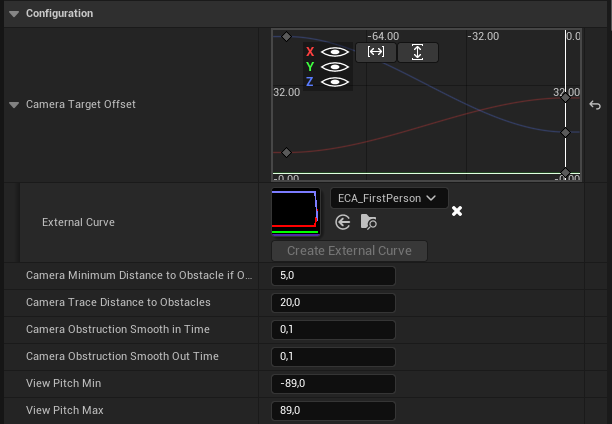
To change how the camera for the character is set up and positioned, you can select the `MotionCameraComponent` in your character blueprint and find some settings in the `Camera` section of the `Details` tab.
Check out [Motion Camera Component](/motion/core-components/motion-camera-component.md) for more information on the configuration.
### Changing the minimum speed that character must walk at
The change the amount of speed that the character can't go under at (to avoid too many speed penalties (i.e. from crouching) from preventing the character to be unable to move), you can click on the `MotionCoreComponent` of your character, and under `Component Speed` in the `Details` tab, you can adjust the `Global Minimum Speed` variable.
### Changing the mouse sensitivity
By default, Motion only applies a static multiplicator onto the input it receives. You can change that multiplier by changing `TurnRateCamera` in the Class Defaults of your Motion Character.